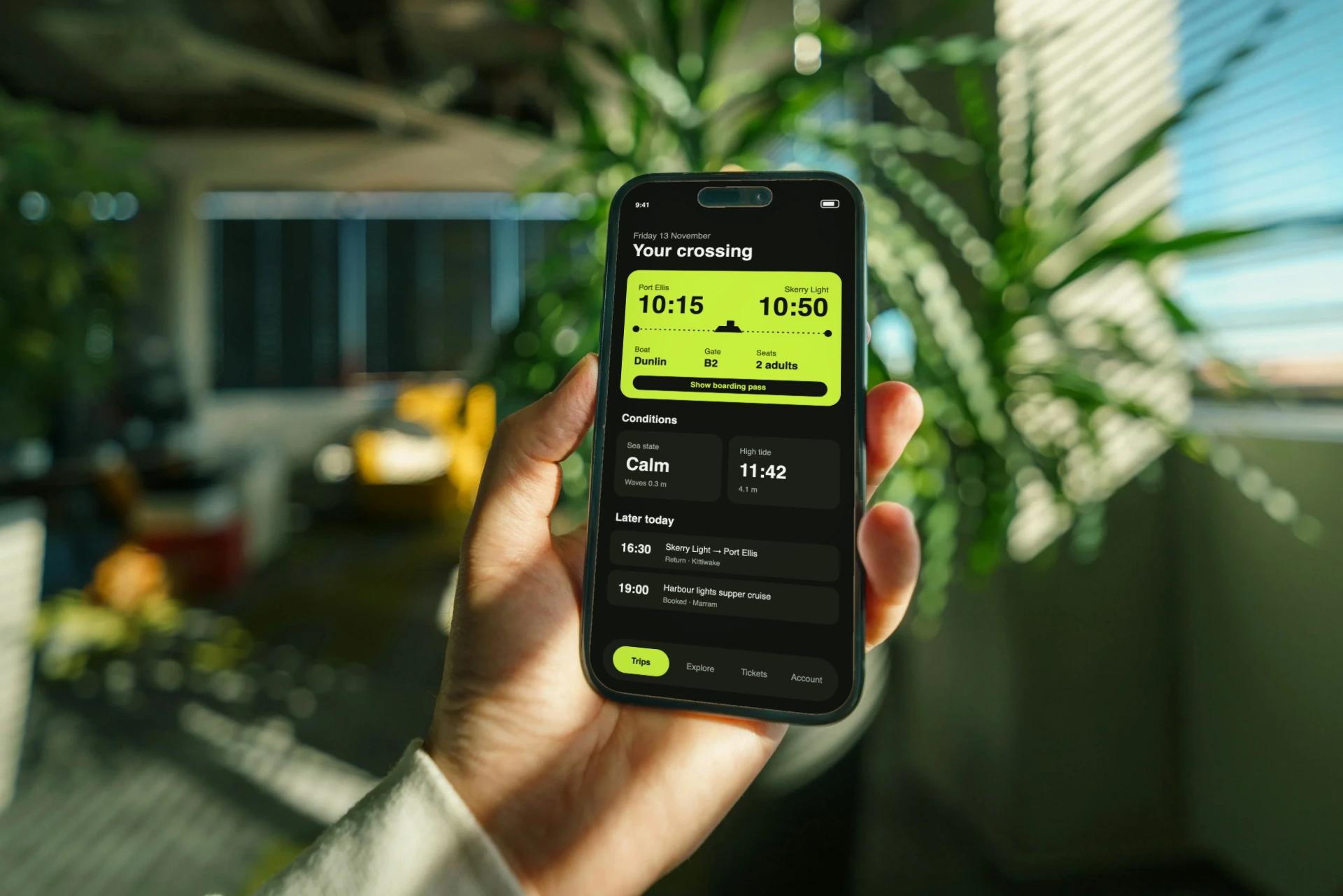
Photo mockup
Your screenshot in a real photograph.
- Import a screenshot
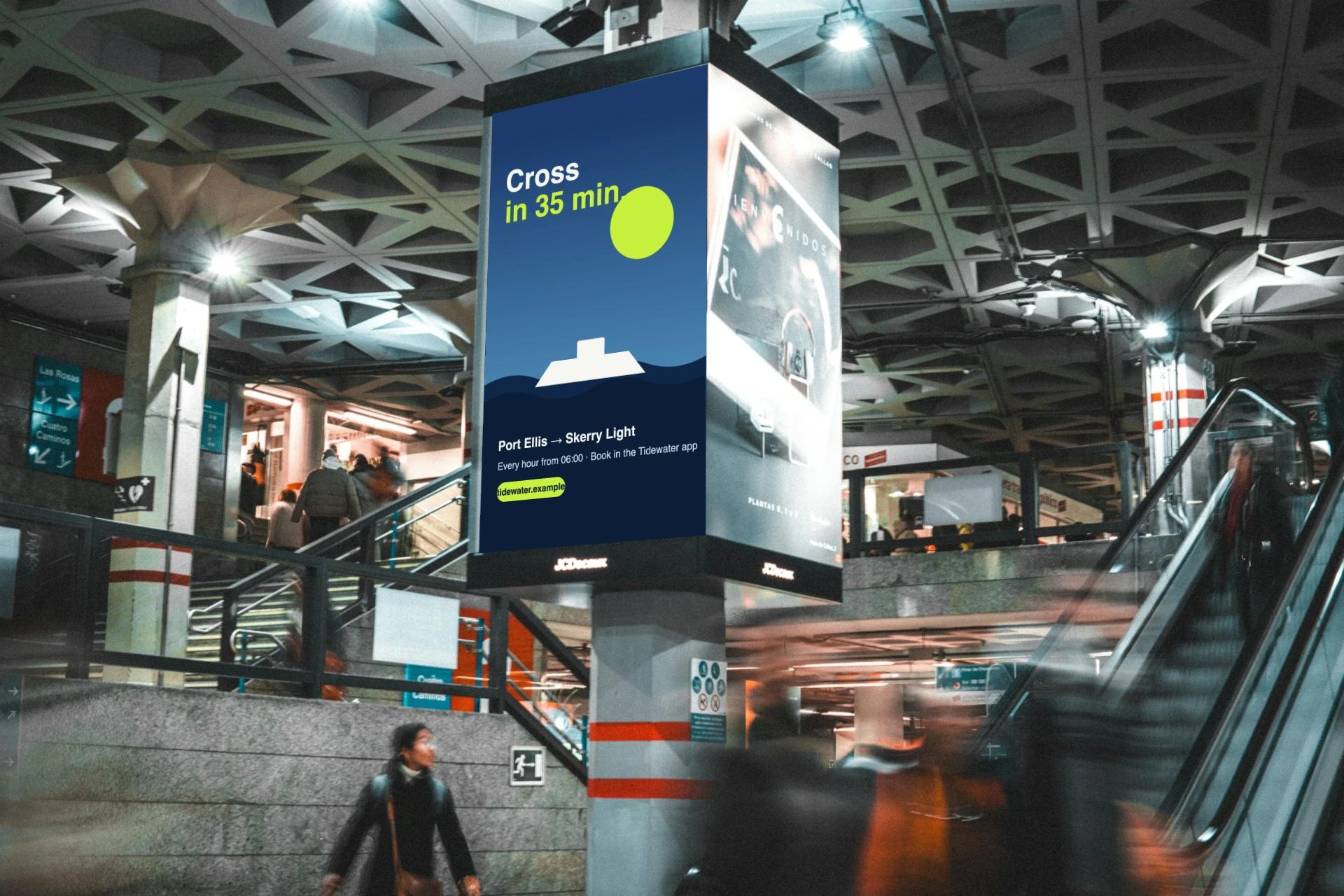
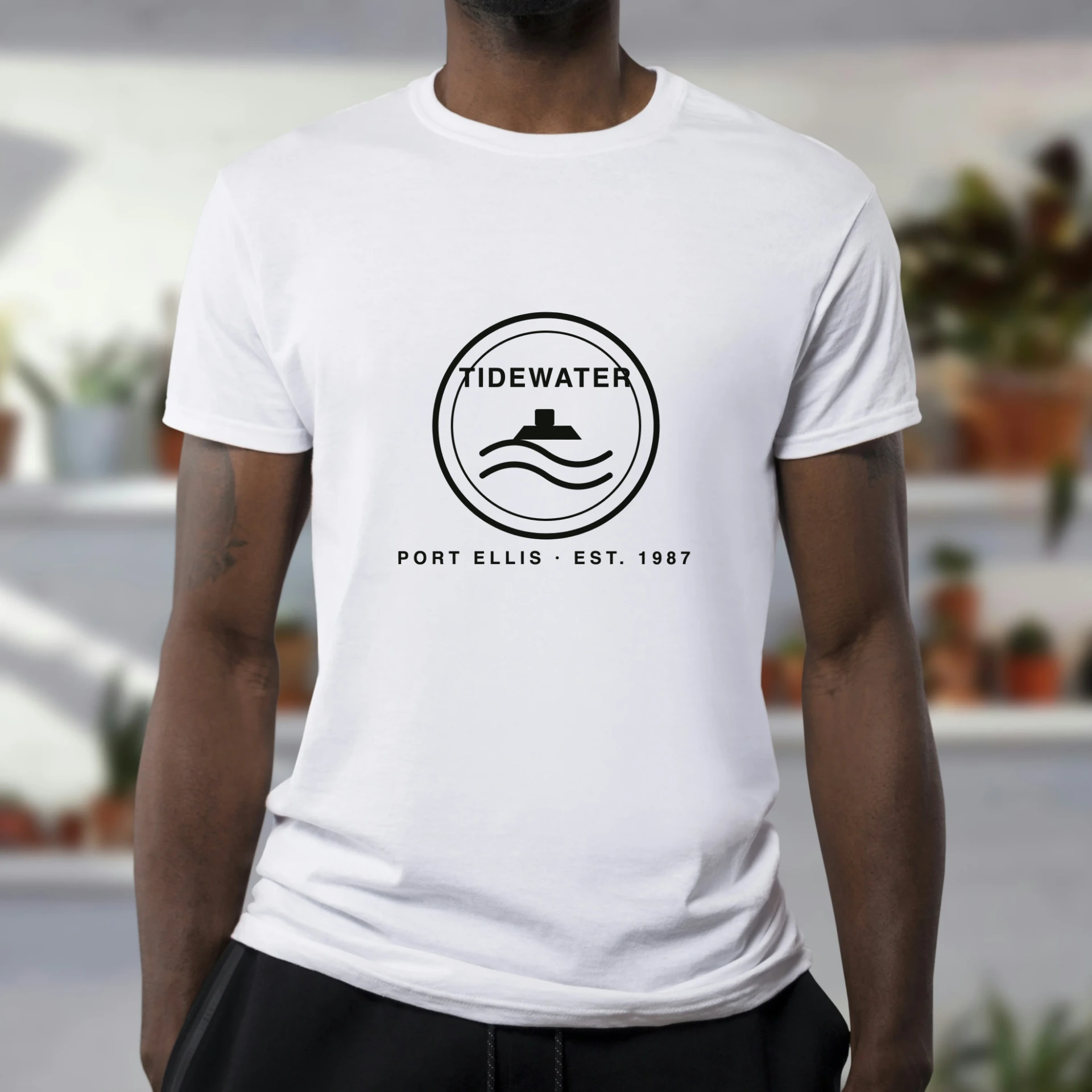
- Pick one of 64 photo scenes: devices, posters, T-shirts and tote bags
- Download PNG, JPG, WEBP at full photo size
Device mockups in your browser
Two tools, one for each job. Both run in your browser and render from your own screenshot or recording.
Your screenshot in a real photograph.
A camera move around your screen.
Free: 10 images and 3 videos a week, 720p, up to 10 seconds, watermark.
Photo mockup
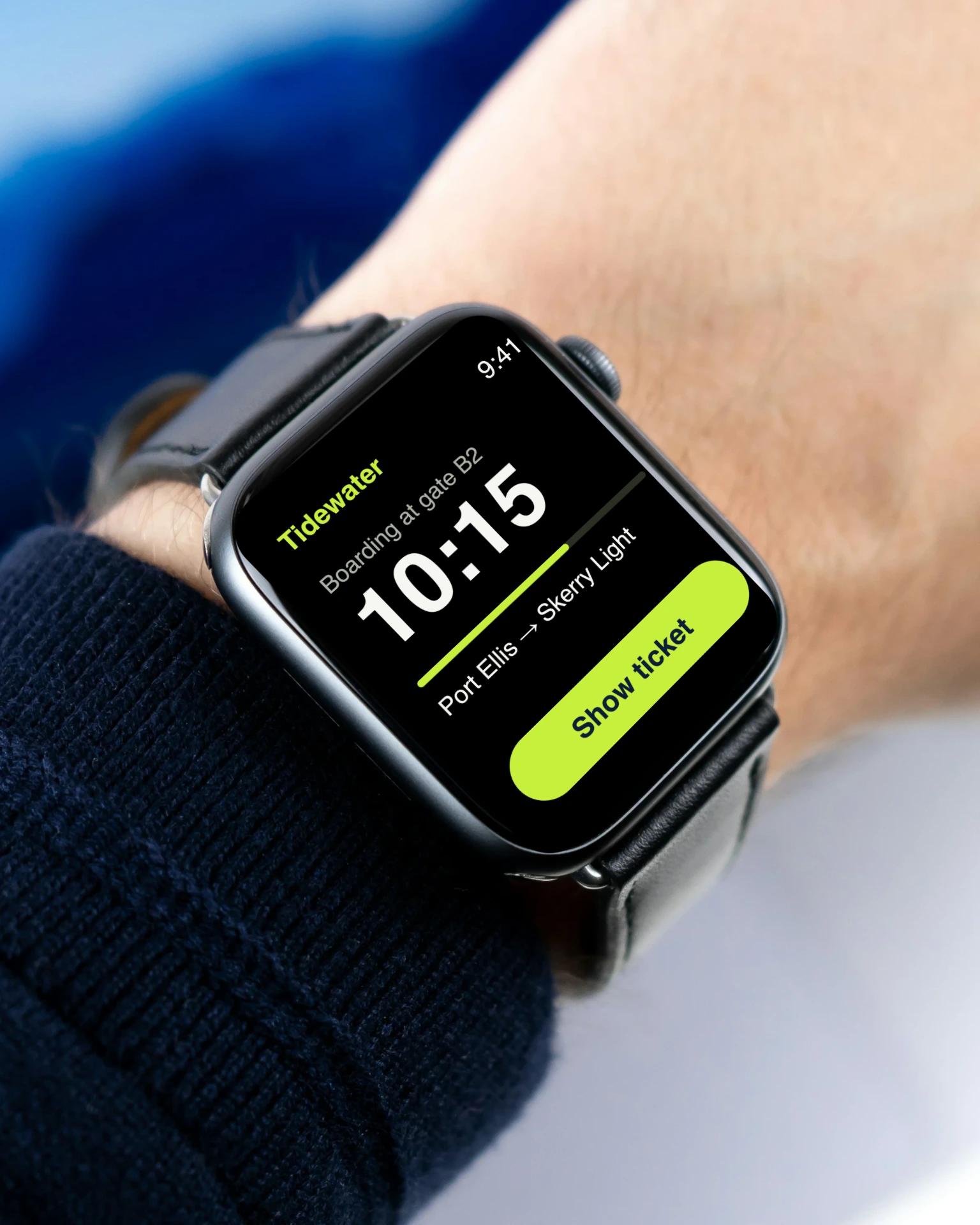
Photographs of phones, tablets, laptops, Apple Watch and TVs, and of posters, T-shirts and tote bags. Pick a scene and add your screenshot or design; the perspective, light, fabric folds and anything in front of the screen are handled for you.
Drop, paste or pick a PNG, JPG or WebP. It stays on your computer.
Choose from 64 photographs. Filter by type (phone, tablet, laptop, watch, TV, poster, T-shirt or tote bag), then by setting. There are no angles to set.
Download PNG, JPG or WebP at up to the full size of the photo.
Video mockup
For launch posts, app previews and landing-page heroes. Works with screenshots and screen recordings.
Drop in a screenshot or an MP4 or WebM recording. A recording plays in step with the timeline.
Start from one of 12 templates, or drag the preview and add keyframes across up to 8 shots.
Render MP4 (H.264) and WebM (VP9) from 720p to 4K, with a progress bar you can cancel.
Rendered from the templates that ship today, using the demo screens.
In both tools
21 models including iPhone 18 Pro and Pro Max, iPhone Duo, Pixel 9 Pro, Galaxy S26 Ultra, MacBook Pro, iPad Pro and Apple Watch, each in its own colours, plus a flat no-device card.
Orbit, pan, zoom and change field of view, then keyframe the move with easing across up to 8 shots.
Keep the device sharp automatically, or set the focus distance and range by hand.
Add bloom, film grain, vignette and motion blur, each with its own amount.
Mark 2 to 4 points on your screen and the editor builds the camera move between them.
12 starting points that set device, camera, background and look while keeping your media.
Use cases
FAQ
No. Your screenshot or recording is read by your browser and rendered on your device. Projects are saved in your browser storage, not on a server.
No. Nothing is generated. The picture on the device is your own media, placed on a 3D model and filmed with a virtual camera.
Photo mockup places your screenshot into a real photograph of a device, such as a phone in a hand or a laptop on a table, and gives you an image. Video mockup puts your screenshot or recording on a 3D device and moves a camera around it to make a video. They are separate tools with separate saved projects.
No. There are no accounts and nothing to sign in to. You import, compose and export straight away.
Video as MP4 (H.264) and WebM (VP9) in 16:9, 9:16, 1:1, 4:5, from 720p to 4K at 30 or 60 fps. Images as PNG, JPG, WEBP up to 5120px, with optional transparency for PNG and WebP.
10 image exports and 3 video exports a week, video at 720p and up to 10 seconds, images up to 1280px, with a small watermark.
A current desktop browser with WebGL 2. Chrome, Edge and Safari encode video with WebCodecs; where the fast encoder is missing, the editor records in real time instead and tells you.
Both tools open with a demo screen, so you can try them before importing anything.